
- Tap on the green “open camera” button.
How to Record a Story on StoryMight
(note: Making changes to your first and last name must be done on the “Settings” screen which can be accessed via the “hamburger” icon on the Home Page)
Tap the purple “Tool Box” icon on the lower left of the Home Page. > Tap the purple “Add to your info” button on the tool box menu. > Scroll to the info you would like to edit and tap the “edit” icon. > Tap any place inside the outlined text box or on the “x” to enable the keyboard. > Make the desired change. > Tap the “save” icon.
Step by step instructions
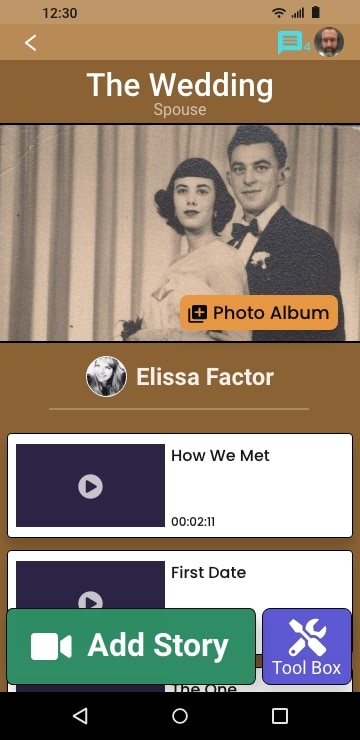
1. Tap the green “Add Story” button
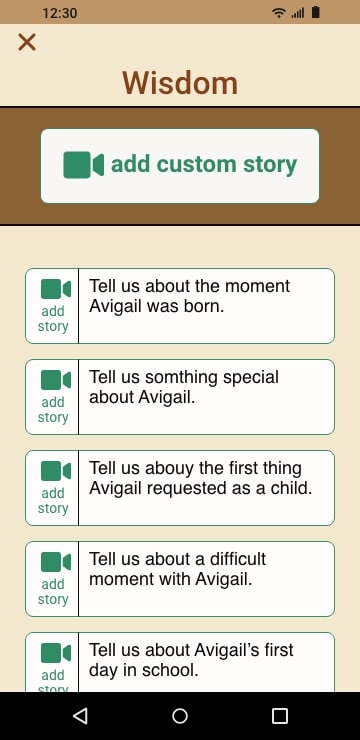
2. Tap on the topic you would like to speak about or tap the “add custom story” button and enter the topic you would like to speak about then tap “done”
3. Choose how you would like to bring the story into your StoryBook. tap on “open camera” to record your story. tap on “choose from my gallery” to import from your phone. tap on “add from cloud” to import from your cloud storage.
4. A reminder of the topic you have chosen is at the top of the screen. If you are recording yourself, either prop up your phone, use a phone stand or hand hold and look directly into the screen. If you are recording someone tap the “camera” icon to flip the camera from selfi mode.
5. Tap the red “record” button and wait for the count down 3, 2, and a beep. after the beep wait just a moment and then start recording your story.


