- Tap on the green “open camera” button.
How to Record a Story on StoryMight
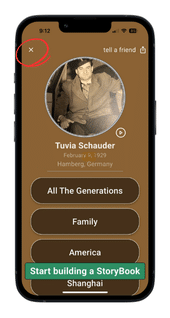
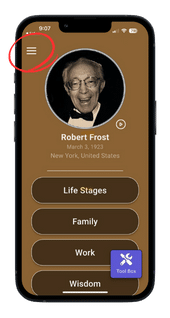
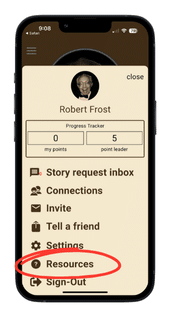
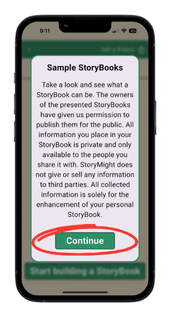
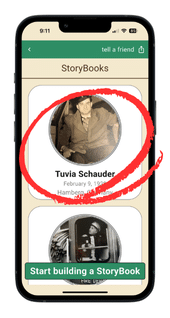
(I have an account) Tap “Hamburger” icon on Home Page. > Tap “Resources” on menu screen. > Tap the green “Continue” button on Sample StoryBooks pop-up screen. > Tap on the desired StoryBook card on the StoryBooks screen. > Tap the “x” icon on the Home Page to exit the chosen StoryBook. Use the back arrows to return to your StoryBook HomePage.
(I don’t have an account) Download the StoryMight app. Tap the “Sign up” button. > Enter your email and tap the brown “next” button. > Enter a unique password, check the “I agree” box, and tap the brown “Sign-up” button. > You will be asked to confirm your email address. > Go to your email account, open the email from StoryMight (check promotions and spam if you do not see it in your in box). If you can not find the confirmation email, return to the “You’re almost there!” screen in the app and tap the word “here” and we’ll resend the confirmation email. If after requesting and not receiving a new verification link, you may have entered an incorrect email. Return to the “You’re almost there!” screen and tap the word “here” at the very bottom of the scrren to start the process anew.> Tap the green “Continue” button on Sample StoryBooks pop-up screen. > Tap on the desired StoryBook card on the StoryBooks screen. > Tap the “Start building a StoryBook” button to start a StoryBook of your own.
Step by step instructions
1. Tap the hamburger menu in the upper left of the home page.
2. Tap “Resources” on the menu.
3. Tap “View Sample StoryBooks” on the Resources menu.
4. Tap on desired StoryBook card on the StoryBooks screen.
5. Tap the “x” icon to close the chosen StoryBook. Use the back arrows to return to your StoryBook Home Page.